Lab application
Installation
git clone https://bitbucket.org/kloostermannerflab/fklab-controller-lab
cd fklab-controller-lab
python setup.py build_ext --inplace
pip install -e . --no-deps
How to use the UI
Before launching your app, you need to create your config file. The app is designed to be very flexible. You can create your own set of manual commands to send to the maze device. You can also create your own automatic task protocol able to automate how the maze should react when receiving a outside trigger (most of the time, detection of the animal in a certain position in the maze for example) To personalized all of this components, you need to create your own config file (see config file)
Then, once you created it, you can launch your app :
usage: hive [-h] [--test] [--debug] [--log_path [LOG_PATH]] [-C CONFIG_PATH]

Launch an experiment

  -h, --help            show this help message and exit
  --test                Enable test the ui without connection to the server
  --debug               Enable debug output in log file
  --log_path [LOG_PATH]
                        Specify where to save the log
  -C CONFIG_PATH, --config_path CONFIG_PATH
                        add extra config path
  --ip IP               change ip address of the server
Note
The ip option should not be necessary as it should automatically detect which network you are using. If it is not working as wanted you can open an issue to warn the maintainer of the project and in waiting still add manually the ip address of the server via the option.
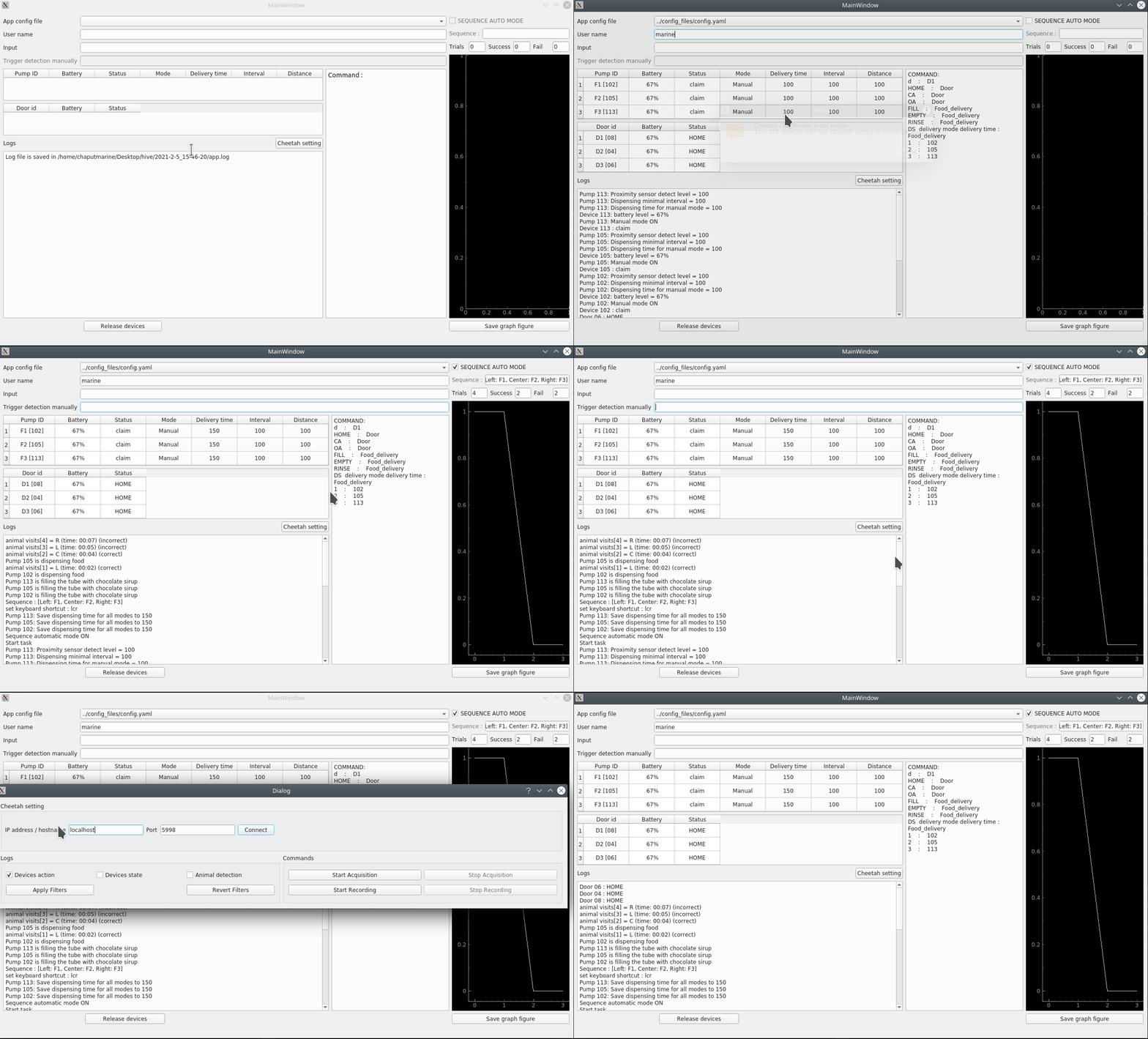
Load your configuration file
- Indicate your username
This step is very important as it will claim the devices in the maze. If devices are already claimed by someone else, you will received an error. It is important to avoid device id errors and sending commands on devices already used in other rooms. Don’t forget to release the devices once you finished your experiment.
- You can see in the log if everything has been correctly claimed and initialized.
Devices with low battery will appears in read in the ui grid.
- Now you are ready to send manual command in the input field
See the list on the middle of the ui. You should see log and update in the device grid each time you call a command.
- You are also ready to launch your automatic task protocol.
Before activated it, you can select the sequence you want, the timeout and the maximum trials for your experiment is not already done in your configuration file.
- Check the sequence auto mode box
From here the automatic protocol is running. You will see log and the device grid being updated when receiving a trigger message.
Note
if you select the Keyboard trigger in your config file, the field “Trigger detection manually” will be activated and you will able to send information to your task manually.
Manual mode / Automatic mode
From the ui, you will able to send command to the maze. This set of command is define in your config file. If you select a task in your config file, the ui will also run in background an automatic protocol. You can also use the Keyboard trigger to communicate with your task and influence it protocols.
Log file
There is three logging output : - Log file : saved in the folder year-month-day_hour-minute-sec - in the gui : separated in messages in the log space and devices grid - sent to Cheetah
The log sent to Cheetah needs three conditions to work correctly :
Hive is launched from a computer on the Nerf Network (not the door wifi)
the Cheetah Router is running on the Neuralynx computer
the address ip and port are set correctly in Hive. To do this, click on the button Cheetah setting. This setting should only be done once the next time it should reconnect automatically.
The log sent to Cheetah can also be personalised in cheetah setting. By default, it is only sending the data when devices are moving. It can also sent the different pump states (how much filled, what is the time setting … ect.) or/and the animal detection in a ROI.
Running Test without the maze
The app is requiring to be connected to the maze network to send commands and receive message if the server trigger is added in the config file. If you want to test the ui without being in the lab connected to this specific network, you can mock this connexion.
The fake writing mode is already integrated in the communication class. When sending order, it will just return the message you would receive if it was a successful sending. Don’t hesitate to change the answer messages (see available answer code in the communication.py/_fake_comm method to test different situations (Error message for example). The fake listen mode if you are using the server trigger needs a little more work as you need to create your own local server in another console to send message (see available message yourself as you were the maze.
Hopefully you made this easy for you. Open a new console and run.
python test/test_event_listen.py
Then, you can finally run (in another console)
lab --test
You can now send commands to the maze with the ui and received message from the maze by writing in the second code your message.